

Why compress your images?
It s all very well to write articles about compressing images via Webflow, but what s the real point of compressing your images?
- Improving your natural search engine optimization (SEO), i.e. enabling you to rank higher in Google search results. But compressing images isn t the only way to improve your SEO! (Find out how to improve your SEO with our ultimate SEO guide on Webflow!)
- Reduce page load times.
- Reduce the carbon footprint of your Webflow site. By reducing the number of images, you ll reduce the number of requests sent to the server, which in turn reduces energy consumption.
- Reducing your Webflow site s bounce rate, i.e. the percentage of people who have visited your site but left immediately, and who have therefore only seen one page of your site.
The Flowbase tool
The Flowbase tool is a Chrome extension that allows you to add several features to your Webflow interface. Icons, new components, image compression, etc.
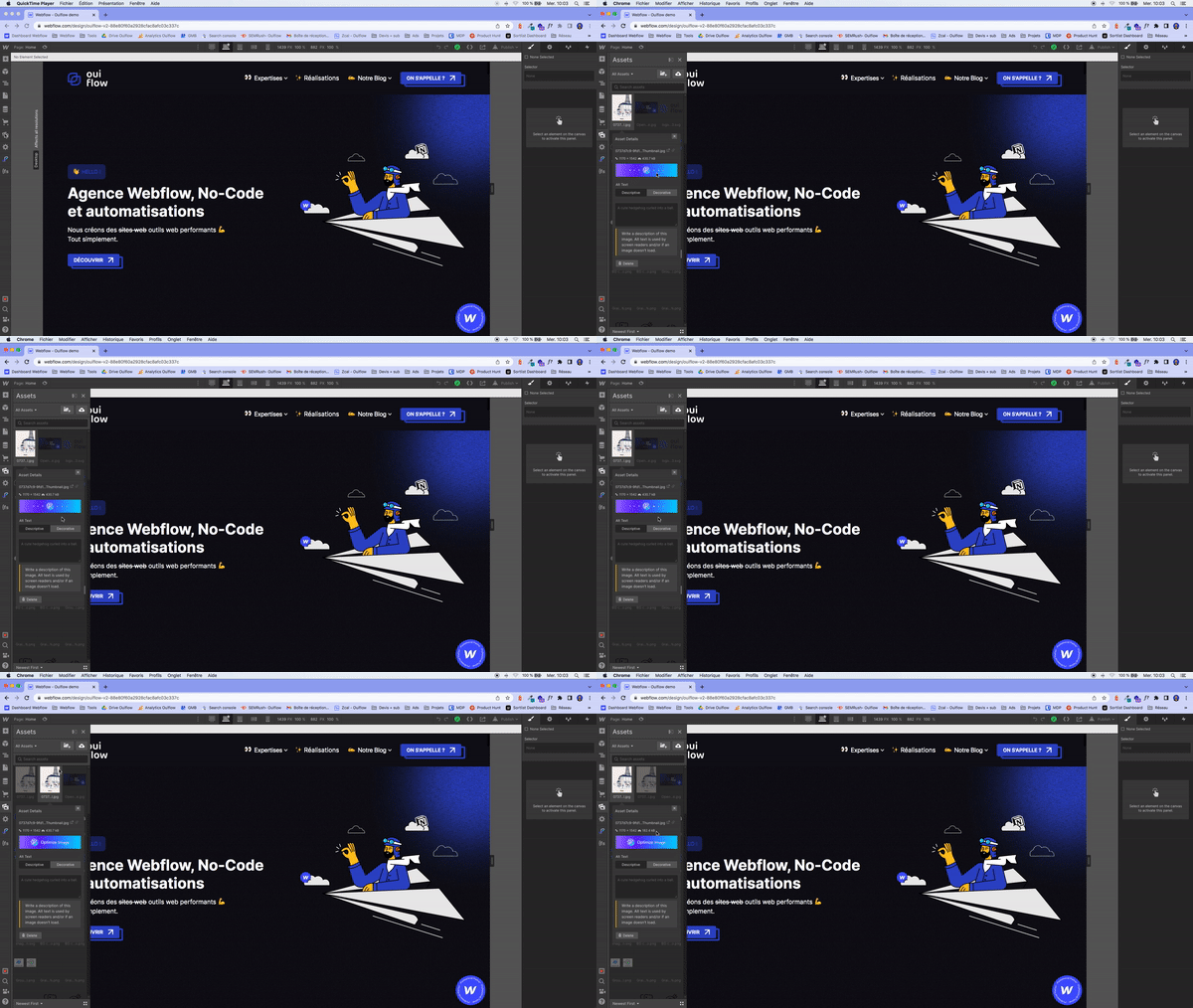
It s super easy to compress your images:
- Download Flowbase
- Open your visuals and images library on your Webflow project
- Open an image s parameters by clicking on the icon at top right
- Click on "Optimize Image
That s it! A duplicate is created, a compressed version of the base image.
See how to do it in video here 👇