
Introduction
Building an accessible website has become a priority for developers and businesses alike. In 2025, accessibility is a legal requirement in many countries. It also gives you a better user experience, a wider audience and better organic search rankings (SEO).
Webflow offers a range of simple, complete tools to design accessible, high-performing sites. In this article, we show you how to work on Webflow accessibility to meet current standards, while taking care of the performance and SEO of your web projects.
Why does accessibility matter so much?
Web accessibility means making your site usable by everyone, including people with visual, hearing, motor or cognitive disabilities. Here is why it matters:
- You comply with regulations. Many texts, such as the RGAA in France or the WCAG (Web Content Accessibility Guidelines) internationally, require websites to meet accessibility standards.
- You improve your SEO. An accessible site often ranks better. Alt text, a logical content structure and short load times help Google index your site.
- You reach a larger audience. An inclusive site opens up to millions more people.
- You improve the user experience (UX). A well-designed site is easy for everyone to browse, with or without a disability.
Webflow offers many courses to help you improve your site's accessibility.
1. Webflow and accessibility, a commitment to inclusivity
At Webflow, the mission to democratize software creation comes with a strong commitment to accessibility. Vlad Magdalin, Chief Innovation Officer and co-founder of Webflow, sums it up this way. "To achieve our mission of democratizing access to software creation, we need to make sure that the experiences built with Webflow, and Webflow itself, are accessible to as many people as possible."
Webflow's goal is to make its tools, and the experiences built with them, accessible to a wider audience. The company keeps improving its features and gives users the resources they need to build more accessible sites.
The "Client First" approach can also help you make your site even more accessible.
2. Use the right semantic tags with Webflow
Why does it matter? HTML tags such as <header>, <main>, <section> or <footer> help screen readers understand the structure of your page.
How do you do it in Webflow? Webflow lets you easily assign a semantic tag to each section or block from its visual editor. Here is how:
- Select a section of your page.
- In the Settings panel, assign the matching HTML tag.
3. Optimize image alt text
Why does it matter? Alt text describes image content to people with visual impairments. It also helps Google index your images.
The steps in Webflow:
- Click an image in the editor.
- Fill in the "Alt text" field with a clear, concise description.
SEO tip. Include relevant keywords, without over-optimizing.
4. Ensure keyboard navigation
Why does it matter? Many users navigate with a keyboard only. Well-designed navigation lets them reach every interactive element (buttons, links, menus) with the Tab key.
The Webflow solution. Enable "focus visible" in the design settings to clearly show where the keyboard focus is. Then test your site with the keyboard to spot any blockers.
5. Use contrasting colors
Why does it matter? Insufficient contrast between text and background makes your site hard to read, especially for people with low vision.
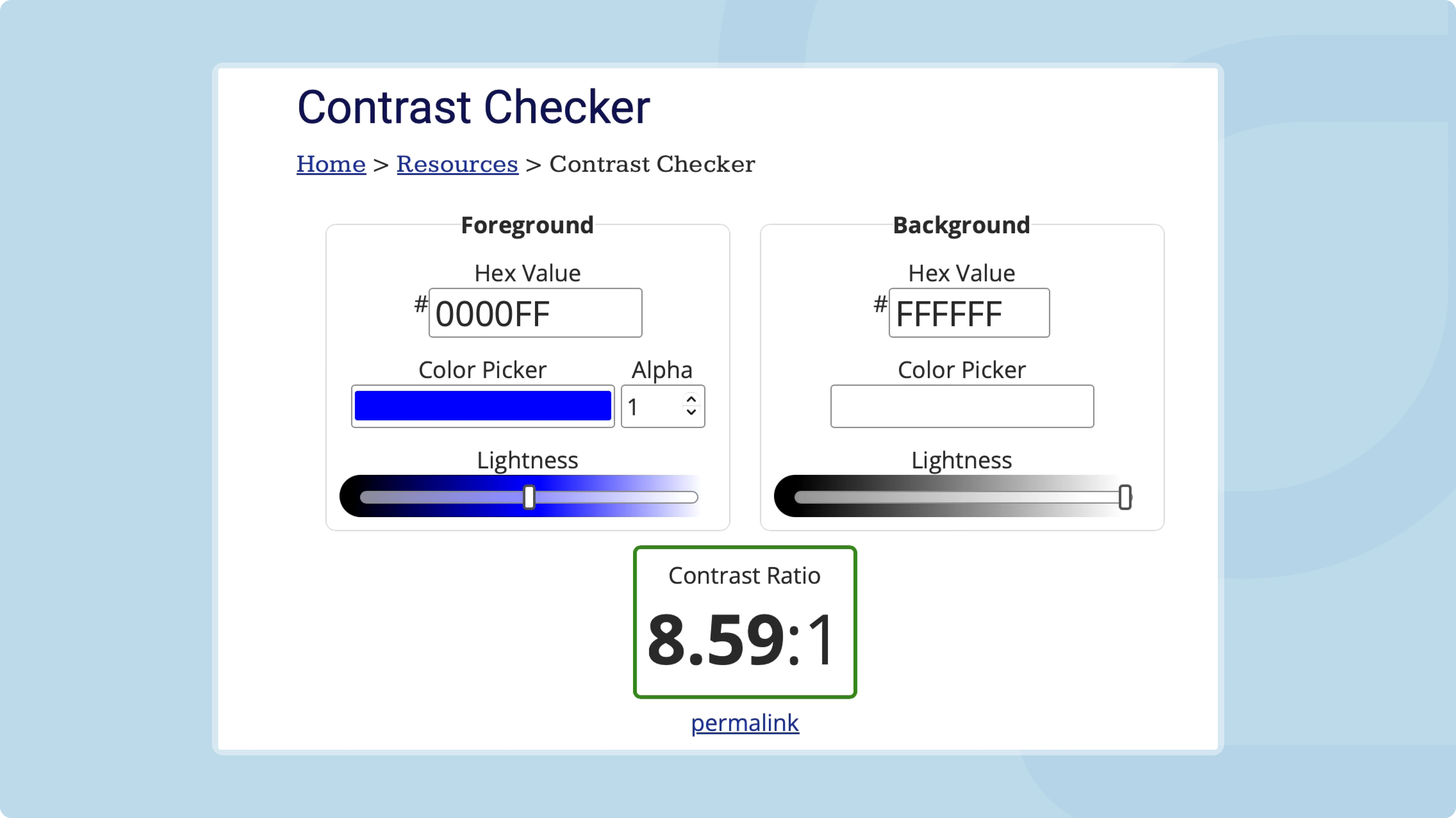
The tools to use. Webflow has a built-in color editor. You can check your color combinations with tools such as Contrast Checker.
Webflow's color picker shows the contrast ratio of your site's text directly. It also shows the WCAG conformance level that matches this ratio.
Best practice. Aim for a minimum contrast ratio of 4.5:1 for normal text and 3:1 for large text.
Test your site with accessibility tools
Why does it matter? Testing lets you check that your site meets WCAG standards.
The tools we recommend:
- WAVE (Web Accessibility Evaluation Tool) identifies accessibility issues.
- Lighthouse (built into Chrome) analyzes performance, SEO and accessibility.
6. Create accessible forms
Why does it matter? A poorly configured form can be unusable for some users.
Practical steps in Webflow:
- Add a label to every form field.
- Write clear, descriptive error messages.
.webp)
7. Make your site mobile-friendly
Why does it matter? Responsive design gives a good experience on every device, especially for people with disabilities.
How do you do it in Webflow? Webflow automatically adapts your designs to mobile. Still, check the following points:
- Text readability.
- Button size (at least 48x48 pixels so they are easy to tap).
8. Add transcripts and captions to multimedia content
Why does it matter? Videos and audio without transcripts exclude people who are deaf or hard of hearing.
Webflow tip. Embed accessible media players and add transcripts directly to your pages.
9. Generate an XML sitemap and optimize your SEO
A clear sitemap improves indexing and navigation for all users.
Webflow tip. Enable the "Sitemap" option in Webflow's SEO settings, then submit it in Google Search Console.
10. Train yourself and raise awareness among your clients
Accessibility is ongoing work. Train your clients and your team on current standards.
Useful resources:
- The official WCAG website.
- The Webflow documentation on accessibility.
11. Build accessibility into your design process
The web should be accessible to everyone. It often is not for people who are blind, have low vision, are deaf or hard of hearing, or have cognitive, learning or mobility impairments. Around 15% of the world's population lives with a disability. That is more than 1 billion people who get a poor user experience when design ignores accessibility.
Web inaccessibility comes from designs that get in the way of assistive technologies (AT). Disabilities themselves and a lack of tools are not the cause. Assistive technologies cover the settings and devices that help people interact with the digital world, for example:
- Screen readers convert text, buttons, images and other page elements into speech or braille. They serve people who are blind, deafblind, have low vision or have cognitive or learning impairments.
- Magnification increases the size of on-screen elements for people with low vision.
- The keyboard lets people with reduced mobility use keyboard commands in place of a mouse.
- Voice dictation lets people with reduced mobility browse the web by voice, with no mouse or keyboard.
12. Use clear, descriptive and sequential headings
Unstructured web content is tiring and hard to use for everyone, and even more so for people with cognitive impairments or who use a screen reader. Headings organize content and guide readers through your site.
Don't:
- Use heading levels only to create visual differences.
- Write a heading only to tick a compliance box. Make sure it is useful.
Do:
- Use 1 H1 per page that describes its purpose (several H1s only if the page truly has several purposes).
- Nest headings in order (for example, an H3 under an H2).
Conclusion
Pave the way for a fairer web with good design and assistive technologies
Webflow is committed to a better, more accessible web. This effort relies on the whole community, which needs to keep following best practices, starting with the Web Content Accessibility Guidelines (WCAG). WebAIM analyzed 1 million home pages and found that 98% of them had avoidable accessibility barriers.
By building accessibility best practices into your Webflow design process, you help create a fairer, more inclusive web. Every improvement to readability, navigation and interaction lets more people access your content and get the full benefit of it.