
A fast, high-performing Webflow site matters for several reasons. First, it gives your visitors a smooth experience. Many studies have also concluded that a few extra seconds of page load time can reduce a website's conversions, customer acquisition and engagement.
User experience also weighs on Google's decisions when it ranks your site in its search index. Page speed has been one of its criteria since 2010.
This article explains how to measure performance, understand the metrics and optimize the performance of your Webflow pages.
How to measure your Webflow site's performance
There are several techniques for measuring the performance of a site or a page. One of the most common is to use a performance analysis tool such as Google Lighthouse.
Google built this tool to analyze websites across 4 categories, including performance. It provides 6 metrics, all related in one way or another to a web page's performance.
The easiest way to run Google Lighthouse is to download the Google Chrome extension.

Interpreting Lighthouse results with Core Web Vitals
The Google Lighthouse dashboard looks complex at first. Once you know how to read its indicators, it shows you exactly where to gain performance.
Let's focus on the key web signals, called Core Web Vitals. Your results appear as a score. A high score means your site is fast, pleasant and stable to browse.
Lighthouse rates your site on 4 main areas:
- performance
- accessibility
- best practices
- SEO
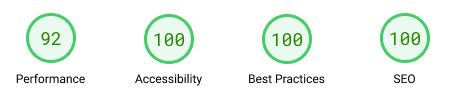
In the performance area we are looking at here, Google considers some metrics more important than others. Here is their weight in the score:
- Total Blocking Time (30%) (CWV)
- Largest Contentful Paint (25%) (CWV)
- Cumulative Layout Shift (15%) (CWV)
- First Contentful Paint (10%)
- Speed Index (10%)
- Time to Interactive (10%)
Imagine that every element Lighthouse examines on your Webflow site is a player on a team. Some players, the Core Web Vitals, count more toward the team's victory, in other words toward your site's speed. Lighthouse gives them more weight when it scores your site.
To improve your site's score, pay particular attention to these Core Web Vitals. Google highlights them because they play a big role in the quality of the user experience.
These metrics are therefore Google's preferred criteria for a quality user experience. Once you interpret them, you know what to optimize to get a site that is fast and pleasant to explore.
Now that you have analyzed your Webflow site's performance, let's see how to improve it.
Improving performance directly in Webflow
Webflow includes many features that improve your site's performance. Here are a few examples:
- asset delivery via CDNs
- code minification
- responsive image delivery
- video transcoding
- CSS and JavaScript cleanup features
- CMS management
- image resizing for each screen
As your site grows larger and more complex, these features are often no longer enough to guarantee fast load times, especially on mobile. You then need to optimize a number of elements.
Optimizing the elements you add to Webflow
It may sound obvious, but the first improvements happen when you import your content (images, videos, fonts, Lottie animations and so on).
The more elements your site has, the more performance you gain by optimizing your content before importing it into Webflow.
Optimize images before importing them into Webflow
- Choose the right image format. Use SVG for illustrations and logos. It produces light files that keep their quality at any display size. For photos without a transparent background, JPG is ideal, since the file will be smaller than a PNG. JPG does not support transparency, and in that case PNG is the format you need.
- Size your images correctly. Webflow resizes images for different screens, but it is always better to import them at the right size from the start. If your image is never displayed wider than 500px, there is no point importing a 4000px image. You can also learn how Webflow optimizes images for every device and resolution.
- Make images lighter. Many free online tools such as TinyPNG or ILoveIMG let you compress all your images. If you do not want to compress them one by one before importing them, you can use Optily, which also offers an app directly in Webflow.
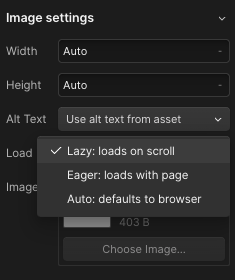
- Use lazy loading. With lazy loading, Webflow loads images progressively so your page appears faster. Avoid it for important images that must appear as soon as someone lands on the page, such as those in the hero section. To change this setting, click your image, open the Settings tab and find the Load setting.
- Keep background images for cases where you need them. In Webflow, background images do not always adapt well to different screens. Use them sparingly and favor regular images when the image needs to be responsive.
Optimizing videos in Webflow
- Compress your videos. As with images, many online tools reduce the size of your videos without sacrificing quality. Tools such as Compress Video can help.
- Favor the MPEG-4 format. MPEG-4 (MP4, M4V) is the recommended format for video on the web. Export and upload your videos in this format.
- Avoid Webflow's native video element. Webflow loads extra JavaScript libraries when you use its native video embed element. The best approach is to add an Embed element to your Webflow site and paste your video's code into it.
Choose the right font and upload it directly in your Webflow project settings
- Upload your fonts manually. When you set up your Webflow site, you may be tempted to pick a Google Fonts or Adobe Fonts font directly from the built-in settings.
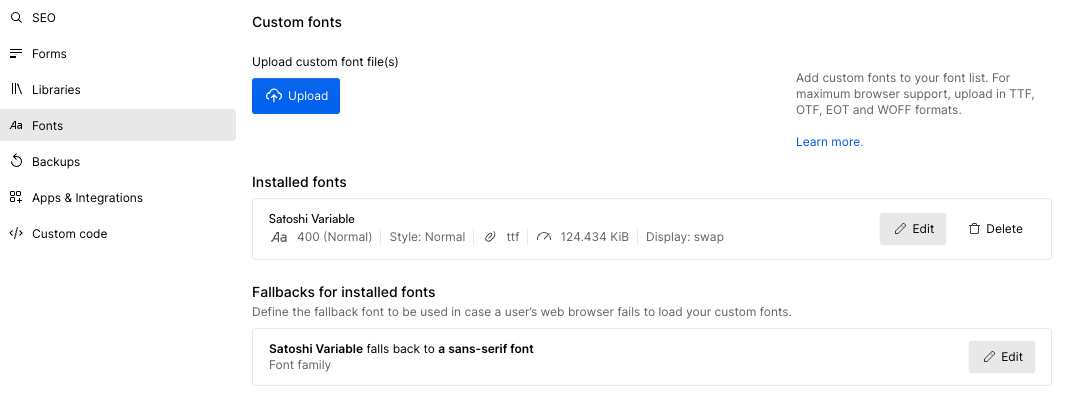
That is not the best option. Your visitors' browsers then have to make extra requests to download the font from an external service, which can slow down your site. The best practice is to download the fonts you plan to use and install them yourself in your site settings.
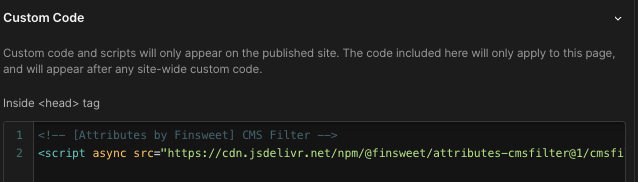
A pro tip is to keep the display: swap option and add this code to the <head> tag of your Webflow project:
<!-- Please keep this css code to improve the font quality--><style>{-webkit-font-smoothing: antialiased;-moz-osx-font-smoothing: grayscale;-o-font-smoothing: antialiased;}</style>
This prevents any flash of invisible or unstyled text while the page loads.
- Use system fonts when the project allows it. Visitors have to download every font, except those already installed on their computer. If your Webflow site's design allows it, choose a common system font such as the classic Arial or Verdana. Why not Comic Sans MS, after all.
- Limit the number of fonts. If you choose a third-party font (Google, Adobe or another), limit the number of different fonts and only import the styles your project actually uses. Loading 1 font compared with 5 makes a big difference in performance.
Limiting imports of external JavaScript and CSS libraries
Every piece of code added to your site, JavaScript or CSS, has to be processed by your visitors' browsers. Webflow keeps its own code light. As soon as you add external code, though, your site's speed can suffer.
This is often the source of the most frequent warnings Webflow users see, such as those suggesting you minimize main-thread work, reduce JavaScript execution time or remove unused code.
Several strategies help you fix these issues.
Put your scripts in the right place
Importing scripts in your site settings makes sense for tools like Google Analytics or for a cookie banner.
If you import a script to run a slider that only appears on your homepage, place the code in that page's settings only.

Place your JavaScript scripts before the closing body tag
The browser parses a web page's code from top to bottom. If you leave your scripts in the head tag, they have to be fully downloaded and parsed before the browser even starts reading the page's HTML.
It is better to import the script at the end of the page, unless it needs to run as soon as the page loads.
Use the async or defer attributes
For each script you import, you can use the async or defer attribute. These attributes prevent script loading from blocking the page display.
The async attribute
The async attribute lets scripts load in parallel without blocking the rest of the page. Other scripts do not wait for an async script to load or run, and vice versa. The DOMContentLoaded event, which signals that the HTML is fully loaded and the DOM is built, can therefore fire before or after an async script loads, depending on its size or whether it is already cached.
A script with the async attribute looks like this:
<script async src="https://mon-script.com"></script>
The defer attribute
The defer attribute tells the browser to load the script while it processes the rest of the page, without pausing. The browser keeps parsing the HTML and building the DOM. Meanwhile, the script loads in the background and waits for the DOM to be ready before it runs.
A script with the defer attribute looks like this:
<script defer src="https://mon-script.com"></script>
How do you choose between async and defer?
The choice between async and defer depends on your script and how it should interact with your page's loading.
With async, it is as if several small kitchen robots were working for you. Each one starts its task (peeling vegetables, mixing cake batter) as soon as it is switched on. None of them cares about the others, and each one starts right away without waiting for the other tasks to finish.
With defer, it is like a team of chefs following a recipe step by step. They wait until the table is set and everything is ready, then serve the dishes in the planned order, the starter before the main course.
In practice, use async when order does not matter and you want the script ready as soon as possible, and defer when scripts must run in a specific order.
Adopt best practices from the start of your Webflow build
Webflow is an excellent tool for building a website, but bad practices can hurt your site's performance. After delivering more than 250 projects on Webflow, we see that the following points help you gain performance points on Lighthouse:
- Use a Webflow development framework and a Style Guide. To keep your CSS as light as possible, follow a design system such as the Client-First methodology. It helps you keep a component structure and avoid creating new classes for everything (and the infamous "div block 148"). Also set up a complete Style Guide that gathers all the important classes of your project. You can clone the Client-First official starter project to get started more easily.
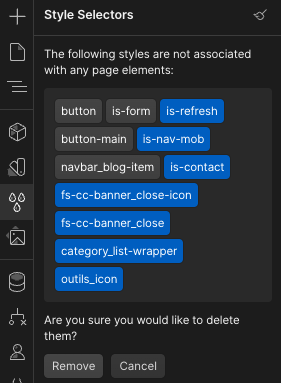
- Use Webflow's cleanup features. Webflow offers tools to clean up the code it generates. You can automatically remove all unused CSS classes from the Style Selectors panel.
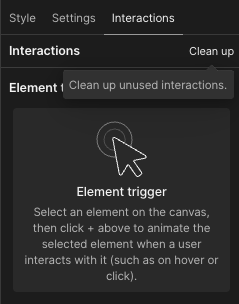
You can also remove unused interactions by opening the Interactions panel and clicking Clean Up.
Get into the habit of using these tools every time you make major changes to your site.
- Favor div blocks over Webflow's native elements. You may be tempted to use prebuilt Webflow elements such as columns or sections. These features are now considered outdated or limiting. A div block set to display grid, for example, makes your design much simpler. Pixel Geek explains this point very well in his video.
- Create reusable animations. Avoid creating a new interaction whenever you can reuse an existing one. You will reduce your JavaScript code.
- Limit the total number of animations. Webflow lets you build sites rich in animations, often very successful visually. All these animations still come at a performance cost. Keep your site's main goal in mind. For a marketing site that must drive traffic to your products or services, it is better to keep animations light. You will lighten the code and make navigation easier. If your goal is to win an award on Awwwards, feel free to go further.
- Favor CSS animations over Webflow interactions.
It is tempting to create native Webflow interactions to change a text color or a div block's background. Before creating your interaction, ask yourself whether CSS can handle this animation directly. That is often the case for hover states. If the animation is possible in CSS, avoid creating it through the interactions panel.
Conclusion
Optimizing a Webflow site's performance improves both user experience and SEO. Google Lighthouse shows you exactly what to improve, starting with Core Web Vitals. Webflow's built-in features (CDN, code minification, responsive images) are a good starting point. Further optimization is often needed, especially for imported content such as images, videos and fonts.
Adopt rigorous practices from the start of your build, limit external libraries and use Webflow's cleanup tools regularly. Every kilobyte saved improves your site's overall performance, then your visitors' experience, and over time your conversion and customer retention.